
Autocomplete suggestions appear on many sites with a search bar, but far fewer get implemented in a way that genuinely helps users find what they want. That gap between having autocomplete and making it useful is where stores, marketplaces, and platforms can quietly lose conversions every day.
This is not a primer on what autocomplete is. Most people have used it and already understand the basic idea. What matters is why it falls short, why those issues often go unnoticed, and what to fix first if you want it to work better.
Start Here: What Google Gets Right That Most Sites Don’t
Type “green shoes” into Google. Before you finish the query, you see suggestions like “green shoes for women,” “green shoes outfit,” and “green shoes for wedding.” The suggestions are fast, relevant, and ranked. The most useful options appear first, not just the ones that happen to match the prefix in a basic way. This is Google Suggest: an autocomplete system that predicts and completes your query in real time, trained on billions of searches.
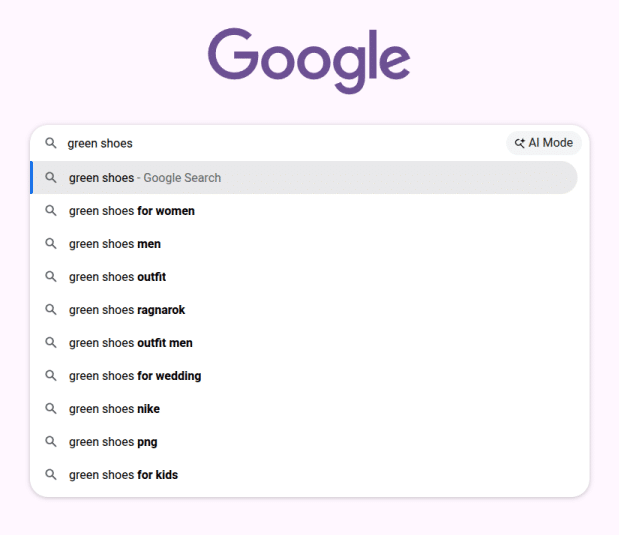
That experience becomes the benchmark users carry into every other search bar they use. When your autocomplete falls short, they notice. They may not be able to explain exactly why, but they feel the friction immediately.
The difference between Google’s autocomplete and most site search implementations comes down to three things Google has that most sites do not:
Behavioral data at scale. Google processes billions of queries and can rank suggestions based on what people actually clicked, refined, and converted on. A site with 10,000 monthly searches has only a tiny fraction of that signal.
Intent modeling, not just prefix matching. Google does not simply complete characters. It interprets what the user is likely trying to do. “Run” becomes “running plan for beginners” because Google understands that many people typing “run” are looking for that kind of outcome, not just any word that starts with the same letters.
A catalog that never goes out of stock. Google’s suggestions almost always lead somewhere useful. Most site search implementations do not have that advantage. They surface products that no longer exist, variants that are sold out, or categories that return zero results.
That third point is where most autocomplete implementations actually break. And it usually has very little to do with the search tool itself.
Autocomplete vs. Predictive Search: Not the Same Thing
The terms get used interchangeably, including by search vendors. They’re not identical.
Autocomplete is reactive. It responds to what you’re actively typing and tries to complete or match that partial input. The trigger is keystrokes — you type “wint,” it shows “winter jacket,” “winter boots,” “winter sale.”
Predictive search is broader and can be proactive. It includes surfacing relevant results or products before the user has finished typing — or even before they’ve started. Trending products when the search bar opens, recently viewed items, intent-based recommendations triggered by session behavior rather than a specific query.
In practice the two overlap: a well-built search bar does both simultaneously. But the distinction matters when diagnosing problems. If your dropdown shows nothing until the user has typed four characters, that’s an autocomplete configuration issue. If your search bar shows nothing when it opens, that’s a predictive search gap — a missed opportunity to surface relevant content before the user has committed to a query.
To have read a more elaborate comparison, check out our article on predictive search.
The Real Problem: It’s Not Your Search Tool
When autocomplete performs badly, the first instinct is usually to blame the search engine. Wrong tool. Wrong setup. Wrong vendor.
Sometimes that is true. More often, though, the search tool is surfacing exactly what it has been given. The real issue is the data behind it.
Poor autocomplete is almost always a catalog data problem.
That is the difference between autocomplete search suggestions that help users and autocomplete suggestions that quietly erode trust. It is not usually the tool. It is the data source.
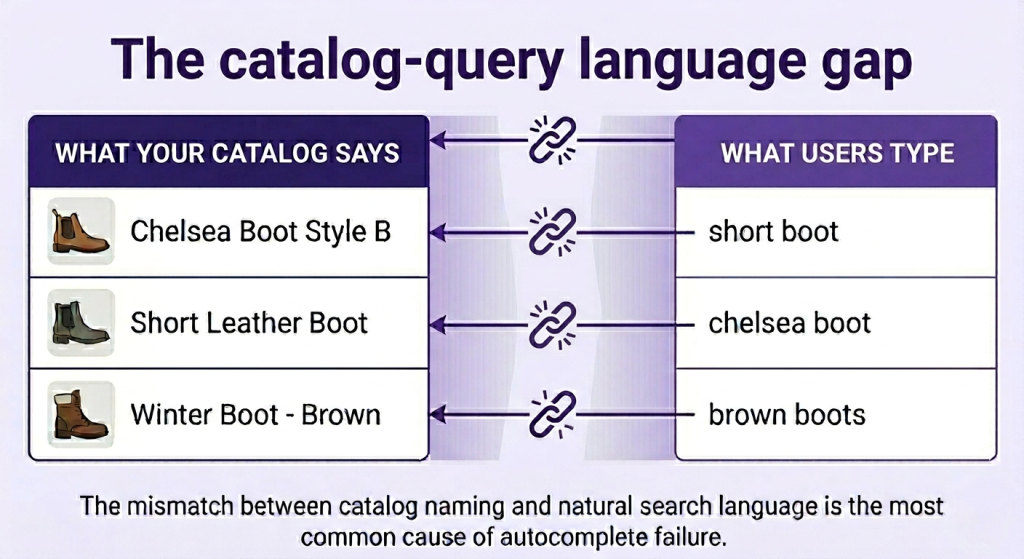
Your product catalog was built by your team, using internal naming conventions, merchandising rules, and product structures that make sense inside the business. Your customers search in their own language. They use colloquial terms, regional phrases, shorthand, and the words they would use talking to a friend. Those two vocabularies rarely line up perfectly.
The catalog says “Ankle Boot Style A.” The user types “chelsea boot.” No match. No suggestion. The search tool is not broken. The catalog just does not speak the user’s language.
This gets worse across three very common failure patterns.
Dead-end suggestions
A suggestion appears in the dropdown, but it leads to a page with zero results, or to a product that has been out of stock for weeks. The user clicks, finds nothing, and leaves with a worse impression than if the suggestion had never shown up at all.
This usually happens when suggestion indexes are not synchronized with live inventory. The suggestion was valid when it was indexed. It is not valid anymore.
Duplicate and redundant suggestions
The user types “dress” and sees: “red dress,” “dress red,” “red dresses.” Three suggestions, one intent, and no added value.
This happens when autocomplete pulls directly from raw query logs without deduplication or normalization. The data may be technically accurate, but it is still unhelpful. Good autocomplete reduces effort. Bad autocomplete just repeats itself in slightly different forms.
Variant noise
A catalog with 40 color variants of the same jacket generates 40 separate product suggestions. Suddenly the dropdown turns into a color selector nobody asked for.
The user wanted “leather jacket.” Instead they get a scroll of “leather jacket black,” “leather jacket dark brown,” “leather jacket cognac,” and “leather jacket tan.”
Good autocomplete groups variants. Bad autocomplete dumps them all into the dropdown.

The Five Types of Autocomplete Suggestions
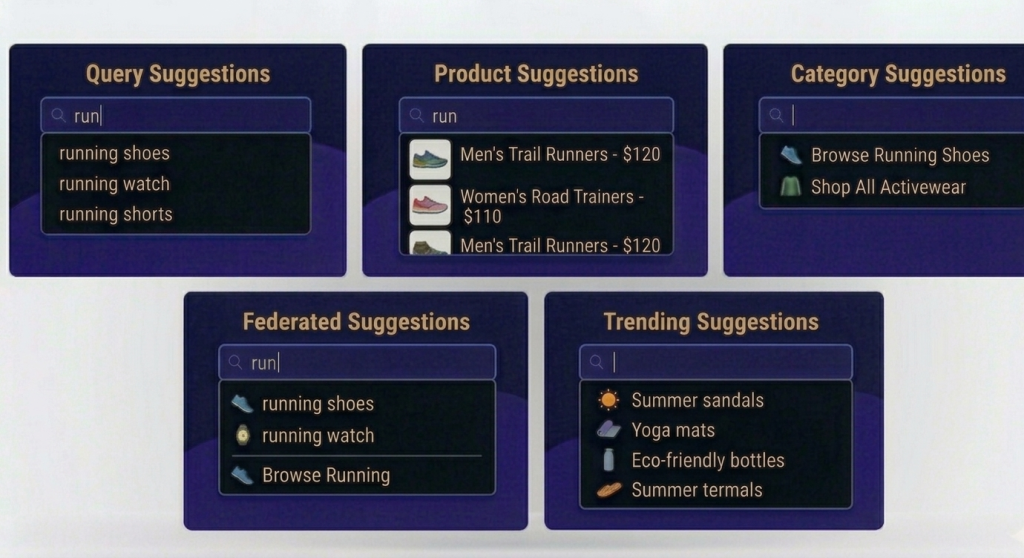
Before you fix anything, it helps to know what kind of autocomplete suggestions you are actually working with. Most sites use one or two of these. The best-performing ones combine them intentionally.
Query suggestions
These complete the user’s partial text with full search terms. They are usually powered by historical search data, meaning what other users have searched for before.
They work well on high-traffic sites with strong behavioral data. On newer sites or niche catalogs, they often produce weak or irrelevant suggestions because there simply is not enough signal yet.
Product suggestions (instant results)
These surface actual product cards as the user types, often with image, name, and price. The user can jump straight to a product detail page without submitting the search.
This type usually has the highest conversion potential, but it depends heavily on clean product data and smart variant grouping.
Category suggestions
These send broad queries to a category or filtered landing page instead of a search results page. If someone types “jackets,” sending them to a strong jackets category page is often better than dropping them into a results page with 400 items sorted by default.
This is especially useful when you want more control over merchandising and page experience.
Federated suggestions
These combine multiple suggestion types in one dropdown, such as query completions, product cards, and category shortcuts.
This is the standard setup for many mid-size and large sites. The key question here is hierarchy. Which suggestion type appears first, and when should that change based on query intent?
Trending and personalized suggestions
These show up before the user has typed anything, usually when they click into the search bar. They may highlight what is popular right now or what this specific user searched for recently.
They can drive engagement, but they can also feel irrelevant very quickly if the personalization signal is weak or outdated.
How to Know If Yours Is Broken
Most teams do not realize their autocomplete is underperforming because they are not looking at the right metrics. Page views and overall conversion rate will not tell you what is happening inside the search bar.
These three signals will:
Zero-results rate from suggestions
What percentage of suggestion clicks lead to a zero-results page?
Anything above 2% is a warning sign. Anything above 5% is actively damaging trust. The average site has a 15% zero-results rate overall, and autocomplete suggestions that are not synced to live catalog data are often a major reason why.
This is one of the clearest health checks you can track because it connects the dropdown directly to business impact.
Suggestion CTR
Of all the times your autocomplete dropdown appears, how often does a user click a suggestion?
Low CTR usually means the suggestions are not relevant enough to be worth selecting. Users are ignoring the dropdown and typing the full query manually instead. That slows them down and increases the chances of reformulation, errors, or abandonment.
Partial query abandonment
These are users who open the search bar, start typing, and then close it without submitting anything.
If this number is high, your suggestions are probably not giving them a good reason to continue. They are not seeing language, products, or categories that reflect what they came looking for.
Most search analytics tools will surface these search analytics. If you are using Doofinder, it is available under Stats Analytics, including zero-results breakdowns and query-level CTR data, without extra setup.
How to Customize and Show Autocomplete Suggestions Correctly
Once you know which failure mode you are dealing with, the fix is usually more operational than technical. Most search tools let you customize search autocomplete suggestions, including what appears, in what order, and under what conditions, without touching code.
Here is the order that usually has the biggest impact:
1. Start with synonyms
This is the highest-leverage fix for the catalog-query language gap.
Map the words users actually type to the words that exist in your catalog. “Trainers” to “sneakers.” “Laptop” to “notebook.” “Sofa” to “couch.”Most search tools include a synonym management layer. Use it before doing anything more complex.
A small, well-maintained synonym list often outperforms much more complicated tuning work.
2. Suppress out-of-stock suggestions
Set rules that prevent out-of-stock products from appearing as product-level suggestions.
This is usually a filtering or boosting rule, not a full rebuild.The moment those products stop showing up in autocomplete, that specific source of zero-result frustration disappears.
3. Fix your minimum character threshold
Many implementations start showing suggestions after one character. That usually creates noise. “A” or “s” rarely gives enough intent to produce something useful.
Set the trigger at two or three characters minimum. The suggestions become more reliable, the dropdown feels less chaotic, and users are less likely to see irrelevant results before they have really started typing.
4. Set a deliberate suggestion count
Five to eight items is usually the effective range.
Below five can feel thin or unhelpful. Above eight tends to create choice overload, especially on mobile. Once the list gets too long, users stop scanning it and either ignore it or abandon the interaction.
On mobile, five is usually the safer number because the dropdown is competing with the keyboard for screen space.
5. Group variants
If your catalog has product variants like color, size, or material, configure your autocomplete to group them under the parent product instead of surfacing every SKU.
One clean “leather jacket” suggestion is almost always more useful than six slightly different color variants.
A quick note for developers: if you are building or customizing autocomplete at the code level, whether in HTML, JavaScript, or a library like jQuery UI, the same logic still applies. The front-end implementation does not fix weak data. A technically polished autocomplete experience will still fail if the underlying data is duplicated, outdated, or disconnected from how users search. Get the data right first. Then improve the interface layer.
Mobile Is a Different Problem
Everything above applies to desktop and mobile, but mobile introduces extra constraints that desktop guidance often overlooks.
Touch keyboards are slower and more error-prone. A suggestion that appears after two characters of “waterproof running shoes” and correctly predicts the full query can save the user five or six keystrokes and a couple of seconds.
On mobile, that is not a small improvement. It can be the difference between continuing the search and abandoning it.
Three things matter especially on mobile:
Tap target height
Each suggestion item needs to be large enough to tap comfortably without accidentally hitting the one above or below it.
The minimum recommended tap target is 44px. Many default implementations still fall under that threshold.
Response speed
Autocomplete on mobile should ideally respond in under 200ms after each keystroke.
Once you get above 400ms, users often type the next character before the suggestions appear. At that point the dropdown feels like it is lagging behind the user, which makes the whole experience feel broken even if the logic is technically correct.
Voice query compatibility
A growing share of mobile searches now start with voice search. Voice queries are longer, more conversational, and more complete grammatically. People say “show me waterproof jackets for hiking,” not just “waterproof jacket.”
If your autocomplete only handles literal prefix matching, these queries often perform badly. Semantic intent matching handles them much better.
The Data Your Autocomplete Is Sitting On
One thing many teams miss is that the queries users type into your search bar are one of the clearest demand signals you have. Not what you think users want. Not what your category tree suggests they want. What they actually typed when they were actively trying to find something.
The queries that show up often but generate zero suggestions tell you where your synonym coverage is weak.
The queries that produce high suggestion CTR but high bounce tell you there is probably a catalog quality issue on the destination page.
The partial queries that never get submitted point to products, content, or categories your catalog simply is not serving well yet.
That means autocomplete data is not just a UX metric. It is a catalog roadmap.
Frequently asked questions about autocomplete suggestions
The terms are often used interchangeably, but there is a useful distinction.
Autocomplete usually refers to completing a partial query. It predicts the full search term from the characters typed so far.
Search suggestions is broader. It can include query completions, product results, category shortcuts, and personalized recommendations.
In practice, the best search bars deliver both together as one experience: autocomplete search suggestions that help complete the query and surface useful destinations at the same time.
Five to eight on desktop is a good working range. Five on mobile is usually best.
If you are showing a mixed format, such as query completions plus product cards, three query suggestions and three product cards is a strong starting point.
Once you consistently go above eight total items, users are much more likely to ignore the dropdown.
Almost always because of a catalog sync problem.
The suggestions were indexed when the product existed or was in stock. The index was not updated when it was removed, discontinued, or sold out.
The fix is usually straightforward: suppress out-of-stock items from suggestions and make sure catalog reindexing runs regularly.
Not directly. Autocomplete works in internal site search, not in external search engine crawling.
Indirectly, yes. Better autocomplete can reduce bounce, increase pages per session, and improve conversion rate. Those are all signs of a stronger on-site experience.
There is also a useful secondary effect: the synonym gaps and naming mismatches you uncover in autocomplete data often reveal broader content and taxonomy issues. Fixing those can improve crawlability and content alignment.
Synonym changes usually take effect immediately in most search tools.
The impact on zero-results rate often becomes visible within days, especially once the next reindexing cycle runs and dead-end suggestions disappear.
CTR improvements usually take a little longer, often two to three weeks, because users need time to interact with the improved suggestion set.
Yes.
Through boosting rules, you can promote seasonal inventory, surface high-priority products, and suppress things like out-of-stock items, low-margin products, or discontinued lines.
In tools like Doofinder, this can usually be managed entirely from the admin panel without development work.
Fix the Data, Then the Tool
The most common autocomplete mistake is treating it like a search tool problem when it is really a catalog data problem.
Map your synonyms. Suppress out-of-stock products. Group your variants. Then use your analytics to find the next gap.
Sites that do this consistently can push zero-results rates below 1%. That is not just a nice feature. It is a compounding advantage every time someone uses the search bar.
If you want to see how your current autocomplete is performing, Doofinder’s stats layer surfaces the key data right after installation, including zero-results breakdowns, suggestion CTR, and query abandonment, without extra setup. You can try Doofinder for free to immediately see the results.